Článek
How To Create Adobe PDF Files: From Simple Documents to Accessible, Professional Files
Creating a PDF is no longer simply a matter of clicking „Save as PDF.“ As digital documents have become central to business, education, government and publishing, the process has evolved into a broader workflow involving conversion, formatting, accessibility, security and, increasingly, artificial intelligence.
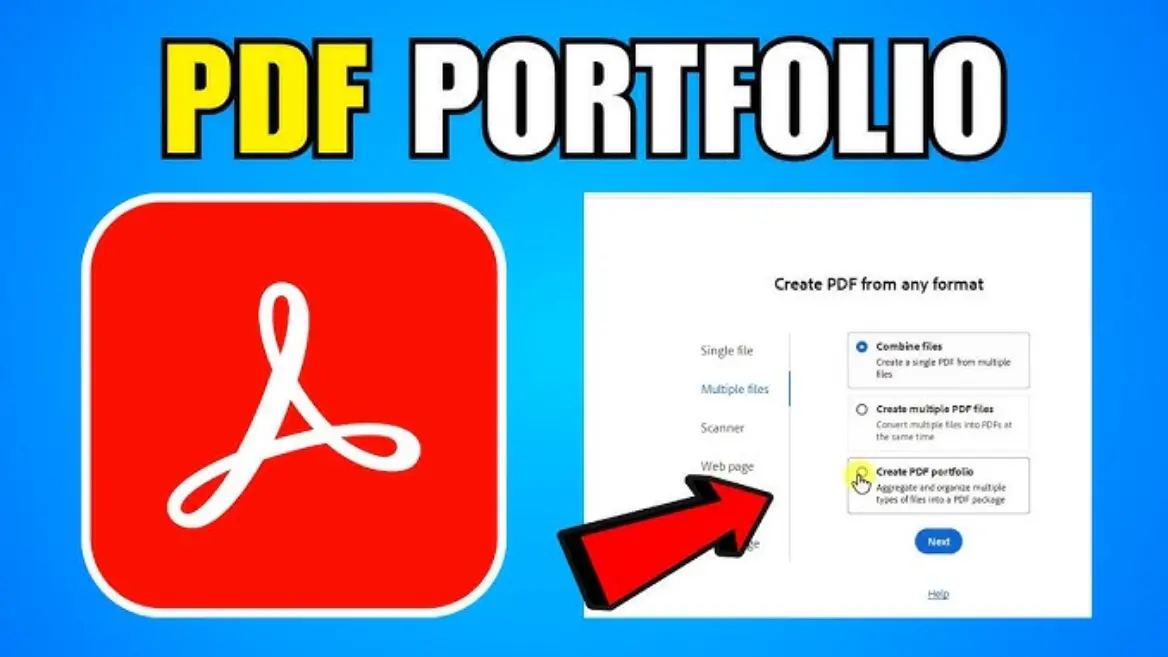
For users searching for How To Create Adobe PDF Files, Adobe Acrobat remains one of the most comprehensive options. It can create PDFs from documents, images and scans, convert files from common office formats, combine multiple files and prepare documents for sharing or printing. Recent updates also place greater emphasis on accessibility and AI-assisted document work.
The basic process remains straightforward, but the best results depend on choosing the right creation method and checking the finished file before distribution.
How To Create Adobe PDF Files
The simplest approach is to begin with an existing document. A Microsoft Word file, PowerPoint presentation, spreadsheet or other supported document can be converted into PDF through Adobe Acrobat or compatible Adobe workflows.
In Acrobat, users can create a PDF by selecting the appropriate creation or conversion tool, choosing the source file and saving the resulting document. Adobe also provides web-based PDF tools for common tasks, giving users alternatives when they do not want to work exclusively in a desktop application.
For documents that already exist on paper, scanning provides another route. Acrobat's scanning and optical character recognition tools can recognize text in scanned material, turning an image-based document into a searchable PDF. OCR is particularly useful for contracts, archived paperwork, receipts and historical records.
The choice of source file matters. A well-structured Word or layout document generally produces a better PDF than a poorly formatted scan because headings, tables, images and other structural elements can be carried into the final document more effectively.
The PDF Creation Workflow Has Become More Sophisticated
A basic PDF may take seconds to create, but professional documents often require several additional steps.
Formatting and document structure
Before conversion, users should check page size, margins, fonts, images, tables and page breaks. A PDF preserves the appearance of a document, but errors in the original layout can become more difficult to correct after conversion.
Navigation also matters for longer files. Bookmarks, descriptive titles and logical headings can make reports, manuals and research documents easier to use.
For organizations producing documents at scale, consistency is equally important. Standardized templates can reduce formatting errors across invoices, reports, forms and customer communications.
Accessibility is now a core consideration
Accessibility has become one of the most important distinctions between a merely viewable PDF and a professionally produced one.
Adobe's current Acrobat documentation recommends considering accessibility in the original authoring application, then tagging the PDF, checking its reading order and repairing problems. Acrobat can also check documents against accessibility requirements and identify issues involving images, headings, tables, scanned text and form fields.
Tagged PDFs provide structural information that assistive technologies can use to interpret content. Alternative text for meaningful images, correctly ordered headings and properly labeled form fields can make documents substantially easier to navigate with screen readers.
This is particularly relevant to government agencies, universities, financial institutions and large employers, where accessibility requirements can affect document production and compliance.
PDF Features That Matter Beyond Conversion
Modern PDF creation is about more than reproducing a page on screen.
Acrobat can create interactive forms containing text fields, checkboxes, buttons and other controls. Businesses use these capabilities for applications, surveys, onboarding documents and internal workflows.
Security is another major consideration. Depending on the workflow, PDF files can be protected against editing, copying or printing, while permissions and passwords can be used to restrict certain actions. Security settings, however, need to be applied carefully because restrictions can sometimes affect accessibility or legitimate document use.
Professional publishing introduces another layer. Acrobat supports specialized PDF standards for areas such as archiving, print production, engineering and variable-data workflows. PDF/A, for example, is designed around long-term document preservation, while PDF/X addresses requirements associated with professional printing.
These standards demonstrate why there is no single „best“ PDF setting. The appropriate configuration depends on what the document is intended to do.
Where Adobe PDF Creation Is Used
PDF remains valuable because it provides a relatively consistent way to distribute documents across operating systems and devices.
In business, PDFs are common for proposals, invoices, contracts, reports and policy documents. In education, they are used for course materials, assignments, research papers and administrative forms. Government organizations rely on PDFs for public forms, notices and records, while publishers and designers use them for production-ready documents.
The format's stability is one of its biggest advantages. A PDF can preserve typography, graphics and page layout without requiring the recipient to have the same authoring software used to create the original.
That convenience comes with trade-offs. A PDF is not always the easiest format to edit, especially when it originates from a scan or complex layout. Poorly generated PDFs can also contain incorrect reading order, missing tags, inaccessible forms or image-only pages.
Current Developments: AI Enters the PDF Workflow
Adobe's recent Acrobat development increasingly connects PDF creation with generative AI. Acrobat AI Assistant can analyze documents, answer questions, generate summaries and help users create or revise content. Adobe says the feature is available across desktop, web and mobile experiences.
That shift changes the role of the PDF application. Instead of functioning primarily as a file converter and editor, Acrobat is increasingly positioned as a document-workflow tool.
The distinction is important. AI can help users locate information or prepare content faster, but it does not eliminate the need for human review. A generated summary can be incomplete, and document changes still need to be checked for accuracy, formatting, accessibility and confidentiality.
For organizations handling sensitive material, AI-enabled document workflows also raise familiar questions about data handling, permissions and governance. Those concerns are likely to remain important as AI becomes more deeply integrated into productivity software.
Advantages and Limitations
The biggest advantage of Adobe's PDF workflow is breadth. Users can convert, edit, combine, scan, recognize text, create forms, apply security controls and prepare files for specialized standards within an established ecosystem.
The limitation is complexity. Advanced features can require paid Acrobat plans, specialized knowledge or considerable manual checking. Accessibility remediation, in particular, cannot always be solved perfectly with automated tools. Adobe's own guidance distinguishes between automated checks and issues that require human inspection.
There is also a practical question of whether PDF is the right final format. For documents intended for extensive collaboration and editing, a native document format may remain more suitable until the final publication stage.
The Future of PDF Creation
PDF is unlikely to disappear as digital workflows become more sophisticated. Instead, its role is changing from a static document container toward a more intelligent part of the broader document lifecycle.
The direction of Acrobat suggests that future PDF workflows will increasingly combine automated conversion, accessibility checks, document intelligence, collaboration and AI-assisted analysis. What remains less certain is how much of that work will become fully automated.
For now, the most reliable approach to How To Create Adobe PDF Files is still grounded in fundamentals: start with a well-structured source, choose the appropriate PDF workflow, check the finished document, verify accessibility where required and apply security and standards appropriate to its purpose.
A good PDF is not simply a file that opens correctly. It is a document that preserves information, remains usable across devices, meets its intended technical requirements and serves its readers reliably.
Resources:
https://drive.google.com/drive/folders/1QErD2PaCjuY_SwwI-AJJG9X0zDjDjKtF